×
powered by cludo

FAQ for CUC26 Speakers - Logins, Stage Facts, What to Expect

Sign up for our newsletter

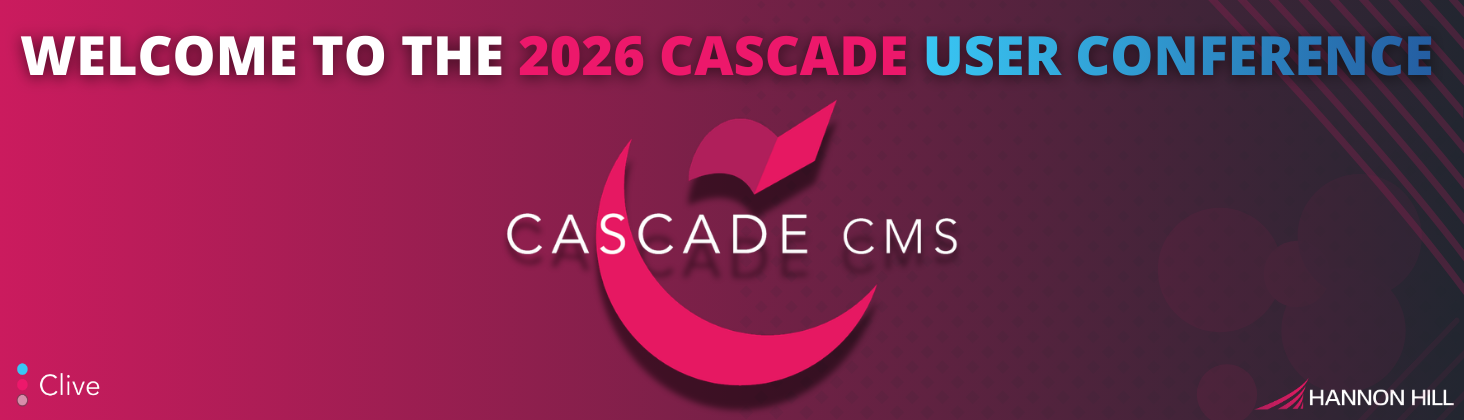
Banner for the Attendee Hub for CUC26


AN FAQ JUST FOR CUC26 SPEAKERS:

LOGINS, STAGE FACTS, WHAT TO EXPECT

LINK TO CONFERENCE LOGIN


The Details:

🌟 When: March 3-5, 2026, 10 AM - 5 PM ET
🌟 Where: Attendee Hub
🌟 What: A 3-Day Online Conference for Higher Ed Web Teams, Marketing Teams, & Admins
🌟 Who: Our valued and cherished CUC26 Speakers!


EVERYTHING CUC26 SPEAKERS NEED:

It's finally here! The 2026 Cascade User Conference starts next week! You've sent us your professional headshot, invited a few colleagues, wrote (or Chat GPT'd 😉) your bio, fought through a cold or two, turned in your presentation, and have even chosen a catchy title for your presentation... SUCCESS... but...

... Am I the only one who doesn't know where or how to log in or if I'm registered?

By the end of this short blog, you will have a firm understanding of how to navigate to the conference, navigate the stage itself, and what to expect from your Hannon Hill Moderators. Buckle up! We're going for a ride. 😊
 

THE ESSENTIAL FAQ:

  • Q - I never received a link to register as a Speaker. Did I miss the email?
  • A - No! We are pleased to inform you that ALL Speakers have been pre-registered for the conference. No additional registration will be necessary for you to experience the conference as a Speaker or an Attendee!


  • Q - So, if I am pre-registered, what are my login credentials?
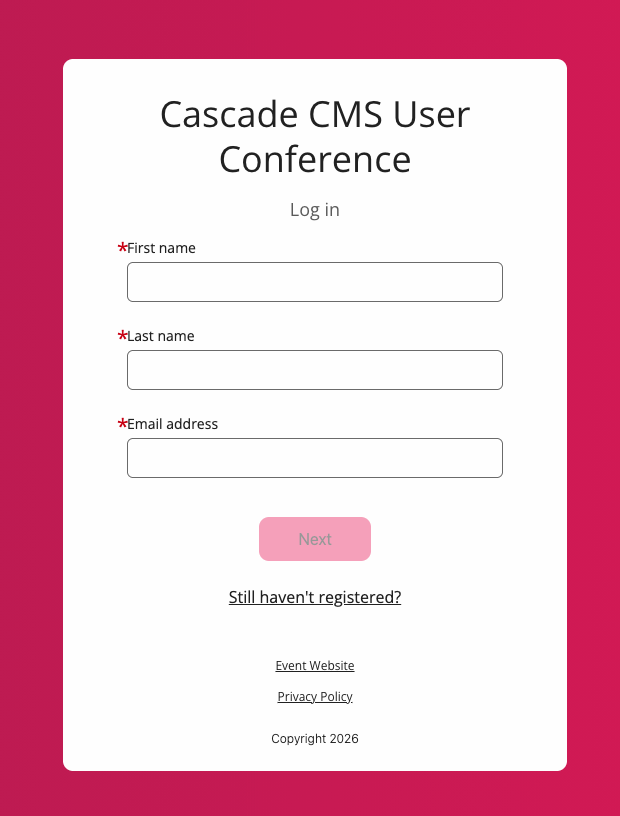
  • A - Your login will be your first name, last name, and email address used to submit your video presentation! Expect a verification code sent to your email each time you log in. This helps protect your identity.


  • Q -Where do I log in?
  • A - Here in the event Attendee Hub.

picture of CUC26 attendee hub login screen


  • Q - How do I join my session as a Speaker?
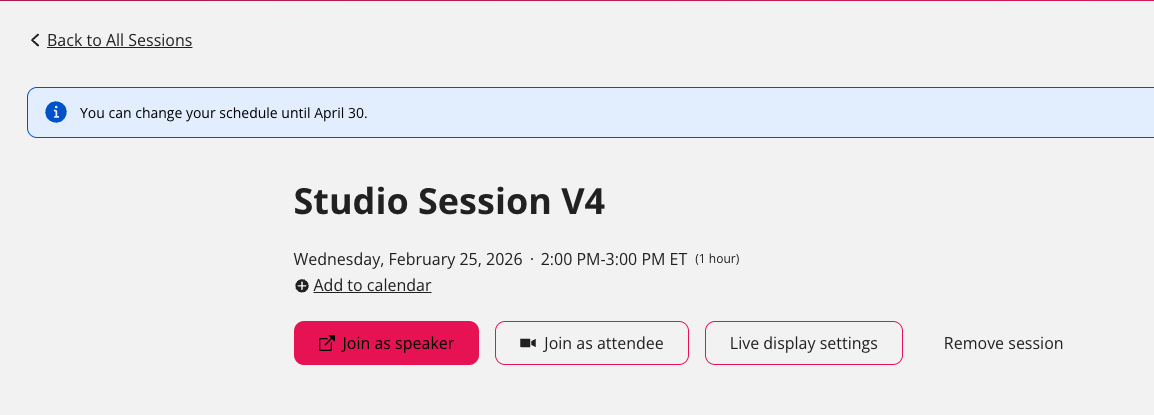
  • Navigate to "All Sessions" in the Attendee Hub, find your session name, and click it. You will then see a pink button that says "JOIN AS SPEAKER" (as shown below).

Screenshot of "JOIN AS SPEAKER" button in Attendee Hub for CUC26


  • Note: Joining your session will NOT start the session. Only a Hannon Hill Moderator can start or stop a session. So, feel free to join your session early and test your mic and setup.
  • Important: The Attendee Hub does not offer background blurring. Please keep this in mind when preparing for Q&A.


  • Q - Will I need to be on camera for my entire session?
  • A - No, you will only need to be prepared to be on camera for 5-15 minutes for Q&A after your session ends.

  • Q - How will my presentation play, and how will I answer questions after my presentation?
  • A - Your presentation has been pre-loaded and will be played by a Hannon Hill Moderator. Once the presentation is complete, a Hannon Hill Moderator will automatically invite you on stage and read your audience questions. In the meantime, you may interact with your viewers in the chat (more on this later).


  • Q - Can I test my camera before the presentation?
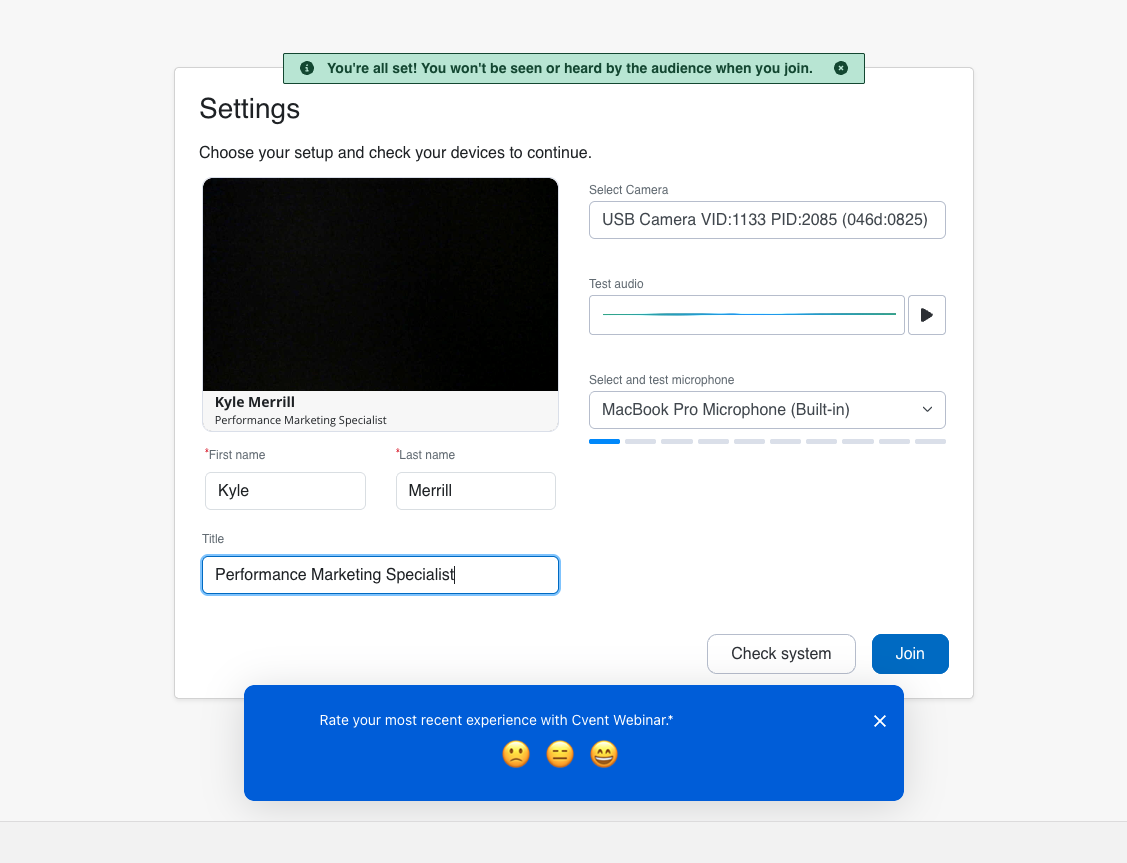
  • A - Yes! If you would like to test your camera, simply join your session as a Speaker and follow the on-screen prompts (as shown below). It is recommended that you arrive 15-20 minutes before your session starts.
   screenshot of Speaker view in CUC26 Attendee Hub


STEP 1: GETTING TO ATTENDEE HUB

Attendee Hub is where the 2026 Cascade User Conference will take place.

Attendee Hub is where Speakers, Attendees, and your Hannon Hill Moderators will navigate to in order to experience the conference, interact with Sponsors, and with each other! This is where the magic takes place.

In Attendee Hub, you can also see Sponsor & Speaker profiles, session names, and how many people are attending each session! We even highlighted some notable sessions we think you should attend as Featured Sessions.
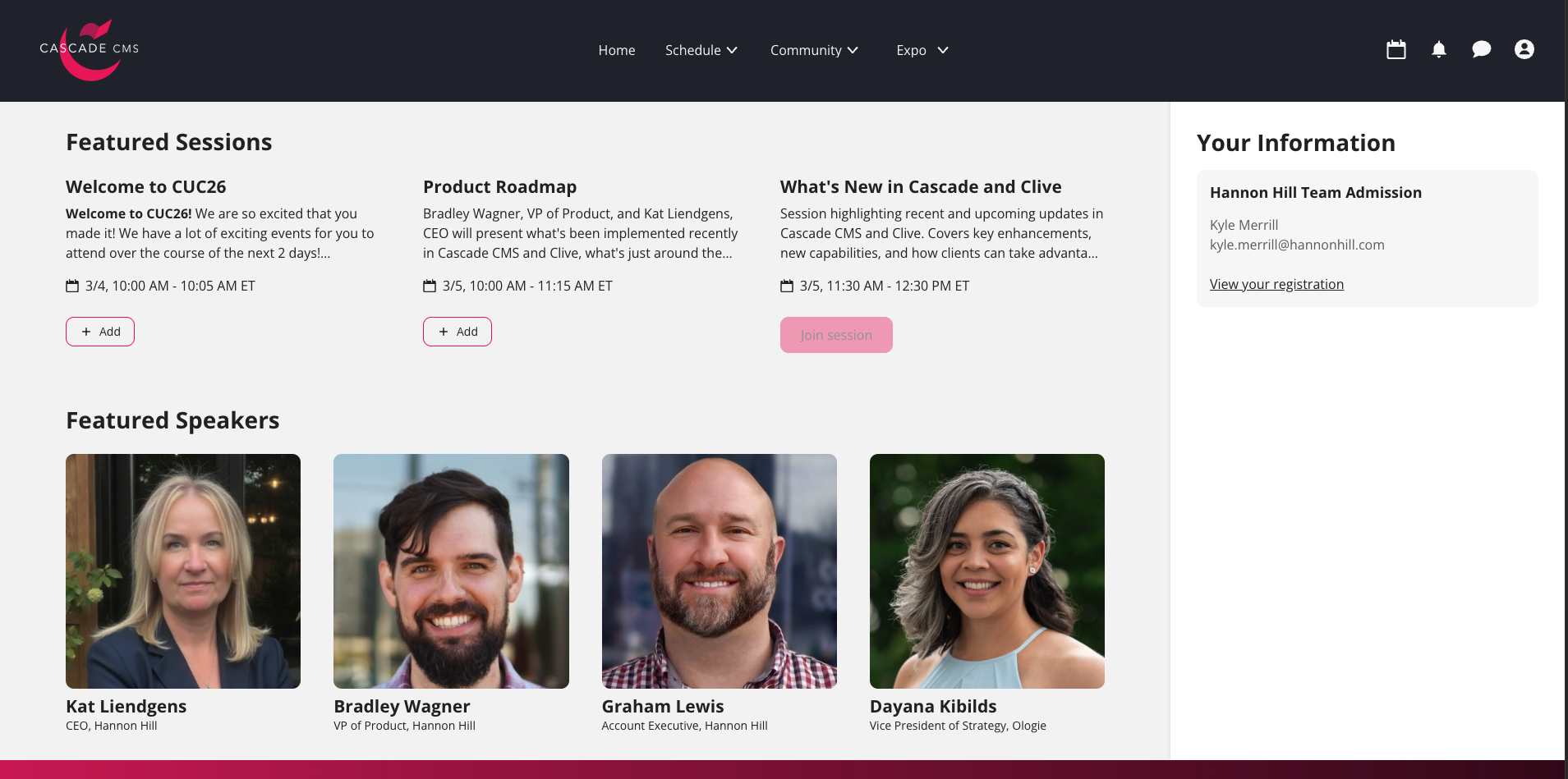
 

Macro shot of the Cascade 2026 Cvent Attendee Hub 

LINK TO ATTENDEE HUB


STEP 2: FINDING & JOINING YOUR SESSION

The moment you log in to Attendee Hub, the conference recognizes you as a Speaker and shows you a few more buttons compared to regular Attendees, but the experience is largely the same.

  1. Simply click "ALL SESSIONS" and navigate to your session.
  2. Click the name of the session, and a set of buttons will appear.
  3. Click "JOIN AS SPEAKER."
  4. BE SURE TO CLICK THE NAME OF THE SESSION, NOT "JOIN SESSION," TO PREVENT JOINING AS A REGULAR ATTENDEE.

Here, you can test your camera before proceeding. Once you are ready, hit "JOIN SESSION." As noted above, this will NOT begin the session. You will be considered "backstage."

When backstage, a Hannon Hill Moderator will be notified that you are ready to join your session. You can communicate with your Hannon Hill Moderator backstage.

Once you are admitted, the session is still not live. A Hannon Hill Moderator will ensure you and your team are ready before going live.

We recommend arriving 15-20 minutes early for your session.


STEP 3: SHOWTIME (THE STAGE)

Once you have configured your camera and joined your session, and a Hannon Hill team member has admitted you into the session in "backstage mode," you may communicate with your Moderator via audio or the Speaker Chat in the bottom-right corner.

Only you and your Hannon Hill Moderator can see this chat, so ask as many questions as you may have here.
 

Chat box for Cascade 2026 user conference


Below is a preview of what the stage will look like for you and Attendees. 
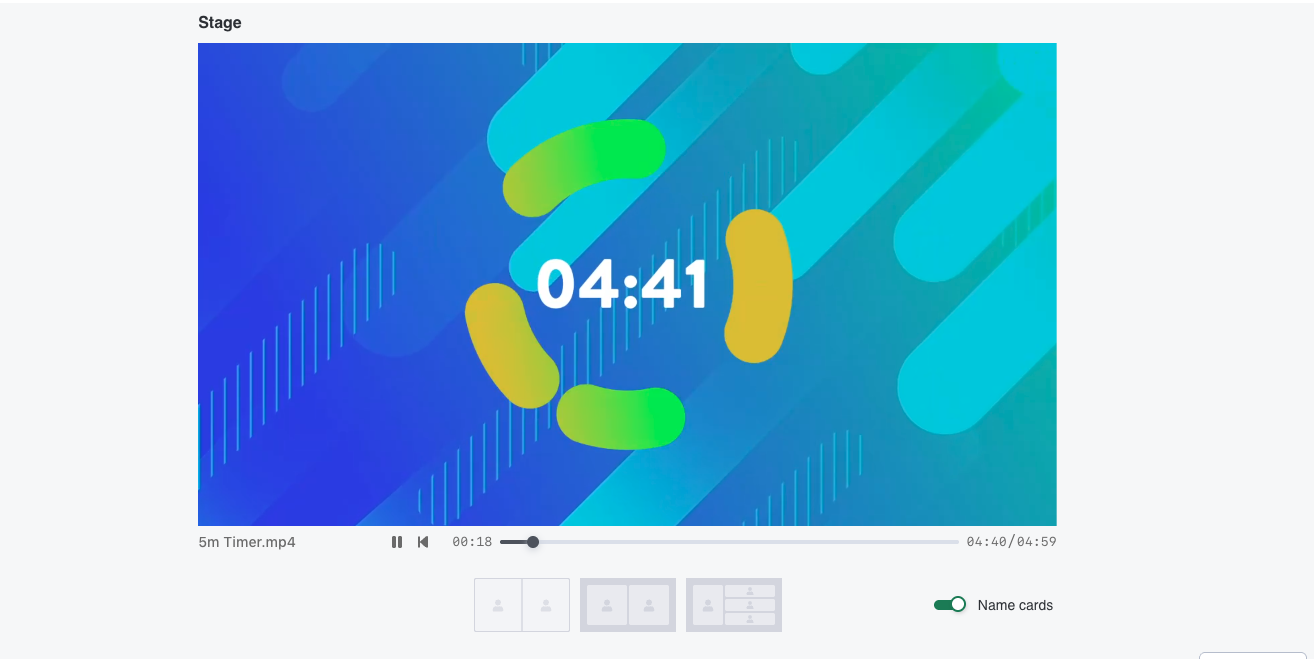
 

Screenshot of the Attendee Hub stage for CUC26

Again, your Hannon Hill Moderator will conduct the show. Your Hannon Hill Moderator will ensure your mic and video are off, play intro videos and some Sponsor videos, and then play your presentation. Relax, and enjoy your hard work!

Feel free to chat with Attendees by using the room chat (shown below). Your Moderators will handle Q&A for you. These buttons will be located on the right side of the room (as shown below).


picture of navigation bar in Attendee Hub for CUC26


STEP 4: TAKE A BOW (Q&A)

Congratulations! You have successfully completed your CUC26 presentation! Your Attendees want to know more!

At this time, your Moderator will say a few words, invite you on stage, and walk you through Q&A within the 50-minute time slot of your presentation.

  • You may share your institution's information in the chat if you'd like!
  • After your Hannon Hill Moderator ends the Live Stream, the recording stops, and the session ends.
  • Once the session ends, Attendees can watch your presentation on demand from the Schedule menu for 48 hours after the conference ends.
  • Note: Slide decks and other PDFs must be shared with the Hannon Hill team well in advance of the conference; otherwise, be prepared to share a link with Attendees in the room chat. 
  • Since attendees can move freely between sessions, expect attendance numbers to fluctuate. This is normal.


During the conference, please reach out to  conference@hannonhill.com for any technical questions.

If you have any issues logging in or finding your session, please let us know as soon as possible.

We're excited to kick off the 2026 Cascade User Conference with you next week! On behalf of the Hannon Hill team, we want to thank you for your patience as we navigated a new system, your flexibility, and most importantly, your contributions to the higher education community.

See you March 3-5, 2026!

To learn more about how Cascade CMS and Clive Web Personalization can help your institution reach more students than ever before, reach out to our team.

Last Updated: Feb 25, 2026 9:00 AM

Photo of Kyle Merrill

Kyle Merrill
Performance Marketing Specialist

Categories

News
Events
User Conference