Context Menu
The context menu provides quick access to common asset actions directly from the site content tree.
Overview
The context menu, accessible by right-clicking on any asset, provides you with a menu of available actions for that asset. Only actions you have permission to take will be available. For example, if you don't have permission to edit a page, the Edit option will not be available in the context menu.
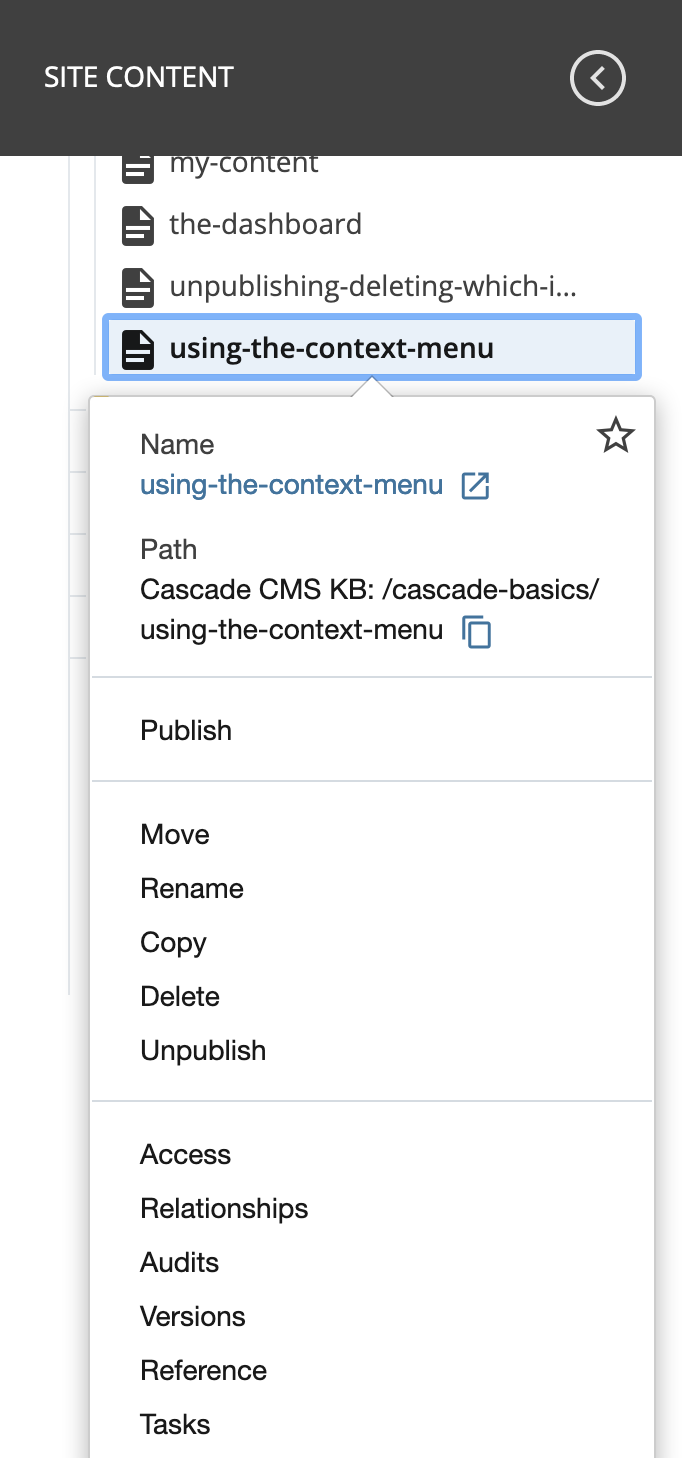
Available actions
The following actions are available from the context menu:
- Star / Unstar — Star the asset to easily find it again. Your starred assets can be found in the My Content area and Dashboard widget and in asset choosers.
- Name — The system name of the asset, which is used in the published URL if it's a publishable asset such as a page, file, or folder. Click the asset link to preview it in the CMS or click the View on the live website link to view it on your live web server (if published).
- Path — The site name and relative path of the asset within the site. Click the Click to copy path link to copy the asset's path to your clipboard.
- Edit — Edit the asset.
- Publish (for publishable assets such as files, pages, and folders) — Publish the asset.
More menu
Additional options are available under the More menu:
- Move — Move the asset to another location.
- Rename — Change the system name of the asset.
- Copy — Make a copy of the asset.
- Delete — Delete the asset.
- Unpublish (for publishable assets such as files, pages, and folders) — Remove the asset from the web server.
- Access — Set read and write permissions for the asset.
- Access for contents (for folders) — Update permissions for assets inside the folder.
- Check-out/Lock — Lock an asset to create a Working Copy and prevent others from submitting changes to it.
- Workflows (for folders) — Assign workflows for the contents of the selected folder.
- Bulk Change (for folders) — Change one or more of the following properties of assets contained in the selected folder in bulk:
- Content Type (for pages)
- Metadata Set (for folders, files, blocks, and/or links)
- Data Definition (for XHTML/Data Definition blocks)
- Relationships — View (and publish, if applicable) content that links to the asset.
- Audits — View a summary of activities related to the asset.
- Versions — View previous versions of the asset.
- Reference — Create an aliased link that allows the asset to be indexed in another location.
- Tasks — View tasks associated with the asset.