What's new in the WYSIWYG editor
Cascade CMS has an updated WYSIWYG editor. This first release stays close to the old look and feel on purpose. Most of what you already know about editing content works the way it always has.
This article covers what is new, what has changed, and what to check if something does not behave the way you expect.
This is an early release
The new editor is available on request. Contact support to have it enabled, either for a whole instance or for a small group of users who can evaluate it first.
Which editor am I using?
If you are not sure whether your instance has the new editor yet, these signals will tell you:
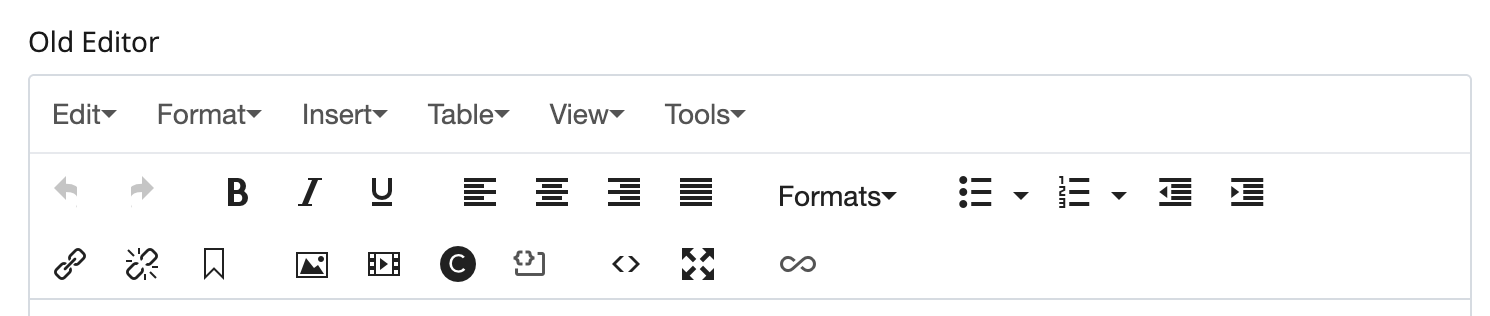
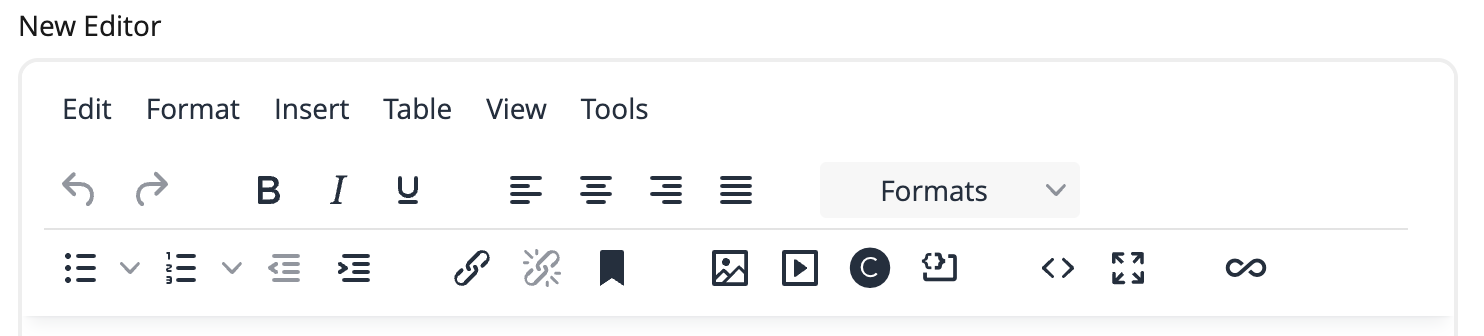
- The menu names have no arrows beside them, and Formats, font and size sit in boxed dropdowns.
- Misspelled words are underlined as you type, without running a separate spellcheck pass.
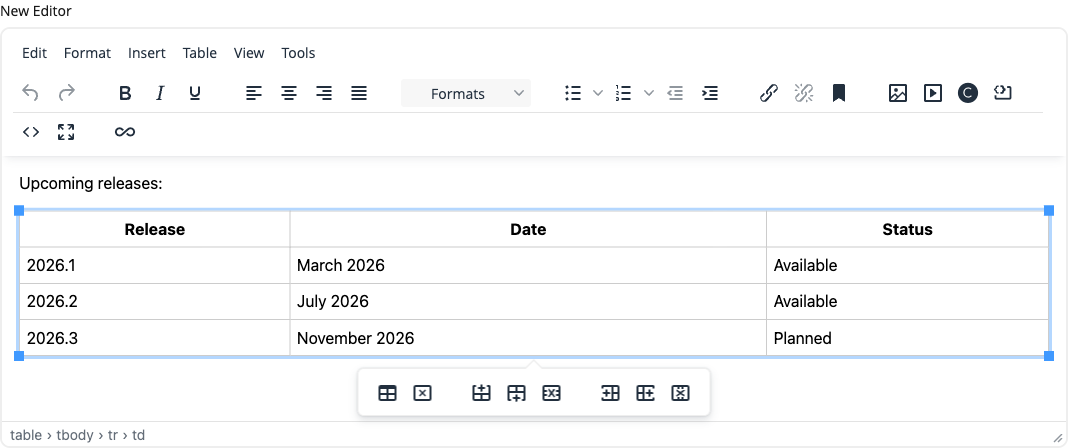
- Clicking into a table shows a toolbar in place, instead of sending you to the Table menu.
If none of those match what you see, you are still on the previous editor. Contact support to have the new one enabled.
At a glance
| Area | New editor | Previously |
|---|---|---|
| Theme | Simplified, modern, higher contrast | A denser toolbar with lower contrast |
| Spellcheck | Flagged inline as you type | Run manually as a separate check |
| Pasting | Power Paste handles Word, Excel, and Google Docs | Basic cleanup that often left stray markup |
| Tables | Rebuilt, with a context toolbar | The original table plugin |
| Links | Query parameters on internal and external links | Path only |
| Dialogs | Responsive and keyboard accessible | Fixed-size popups |
A simplified, modern theme
The toolbar, menus, and dialogs have been restyled. Buttons sit in the same general places, so muscle memory carries over. Icons are cleaner, spacing is more generous, and contrast is improved.
Dialogs were rebuilt as well. They size themselves to their content instead of using fixed dimensions.
Spellcheck as you type
Misspelled words are underlined as you write, rather than appearing only when you run a separate spellcheck pass. Right-click a flagged word to see suggestions, or add it to your dictionary so it stops being flagged.
Checking runs in English, and works the same way in every browser. To check a whole field at once, use Tools > Spellcheck.
Power Paste
Content pasted from another application usually carries markup you do not want. Power Paste cleans up content from Microsoft Word, Microsoft Excel, Google Docs, and other web pages, stripping the markup those sources carry while keeping the structure you want: headings, lists, tables, and links.
There are two ways to paste. Pasting normally is the right choice most of the time.
Press Ctrl / Cmd + V. Power Paste cleans the content automatically, keeping headings, lists, tables, links, and the inline formatting from the source, while stripping the invalid and proprietary markup those sources carry.
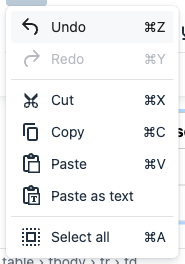
Drops everything but the words. Choose Edit > Paste as text. There is no toolbar button for it unless your WYSIWYG Editor Configuration adds one. This one is a toggle, not a one-off: it stays switched on, and a tick appears beside the menu item, until you turn it off again. Every paste until then is stripped to plain text.
Images do not come across. Pasting from a Word document brings the text and its structure but drops any images the document contained — add those separately with the image button.
Pasting from Excel Online is not supported. Copy from the desktop Excel application instead.
Rebuilt table tools
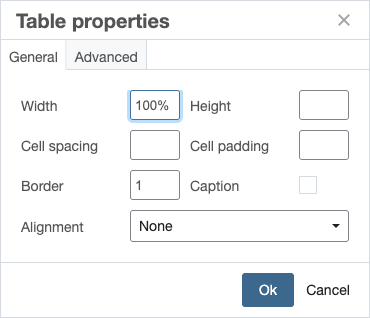
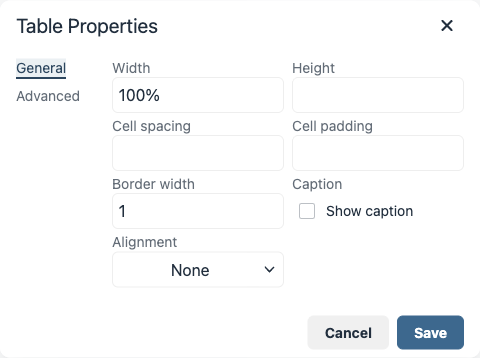
The table plugin has been rebuilt. Most table work now happens in place, without going through the Table menu.
- A context toolbar. Click into a table and a toolbar appears in place with the operations you need: table properties, delete table, and insert or delete rows and columns. No hunting through the Table menu. Merging and splitting cells stay under Table > Cell.
- Unchanged The grid picker. As before, insert a table by dragging across a grid to pick its dimensions, or use the dialog to type exact numbers.
- Unchanged Restyled property dialogs. Table, row, and cell properties each get their own dialog, with basic settings on the General tab and styling on Advanced — the same split as before, in the new styling.
- Headers, footers, and captions are still fully supported, and still the right thing to do for accessibility.
- Classes still work. Table, row, and cell classes configured for your site remain available. The menu path has changed slightly; the classes themselves are unchanged.
An improved link plugin
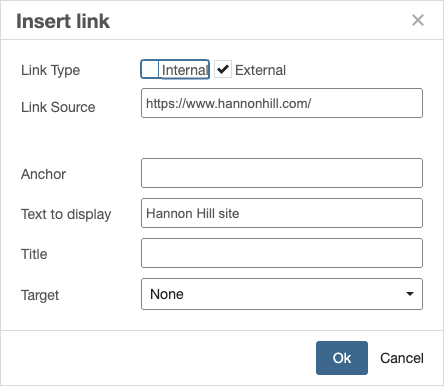
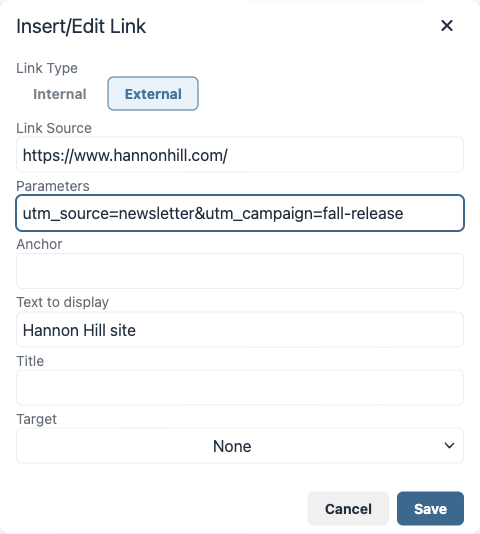
The link dialog now supports query parameters on both internal and external links. Previously you could set only the path; now you can append parameters without switching to the source code view.
This matters most for campaign tracking, for linking to a pre-filtered view of a listing page, and for any internal link that needs to pass a value through to the destination page.
What this means in practice
Pick your page in the chooser as usual, then type the parameters in the Parameters field — for example utm_source=newsletter. Cascade keeps the link tracked, and the parameters ride along with it.
Internal links otherwise work the way they always have. Cascade still tracks the relationship, still updates the link if the target page moves, and still warns you if the target is deleted.
Accessibility
Notifications and dialogs are now fully keyboard reachable. Every notification carries a visible close button you can reach with Tab, and dialogs follow standard focus behavior.
TinyMCE has had several accessibility releases between the two versions, so screen reader support in menus and dialogs is improved.

What has not changed
Your existing content is untouched. The new editor reads and writes the same HTML, so there is no migration and no conversion step.
- WYSIWYG Editor Configurations still control which buttons and formats appear for your users.
- CSS classes made available through Formats still work the same way.
- Unchanged Image, file, and page choosers behave as before. You still browse to assets in Cascade the same way.
- Internal link tracking is unchanged.
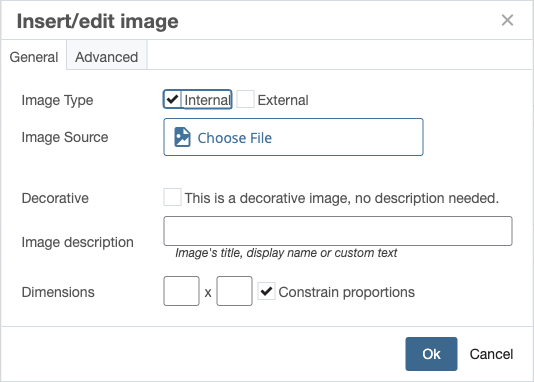
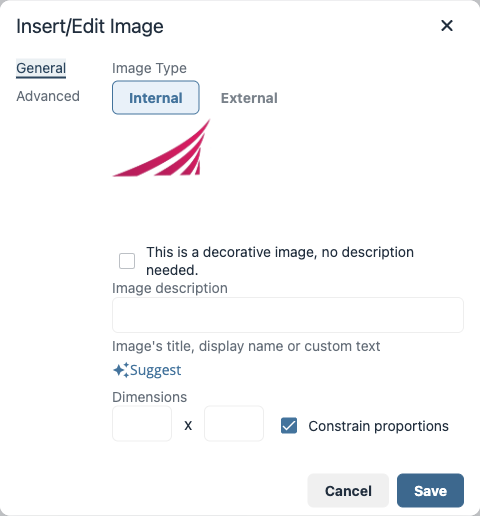
Things to watch for
A few differences are worth knowing about before you start. If any of these affect a page you maintain, contact support. Switching back to the old editor is always an option while the issue is sorted out.
Embedded iframes may need testing
The new editor adds a sandbox attribute to iframes it writes, which blocks scripts, forms, and same-origin access inside the frame. Common video and media hosts are excluded and pass through untouched: YouTube, Vimeo, Dailymotion, Apple Music, Spotify, Giphy, and CodePen. Anything else — third-party maps, forms, booking widgets, dashboards — should be opened in the new editor and checked after a save, because a sandboxed frame often renders but stops working.
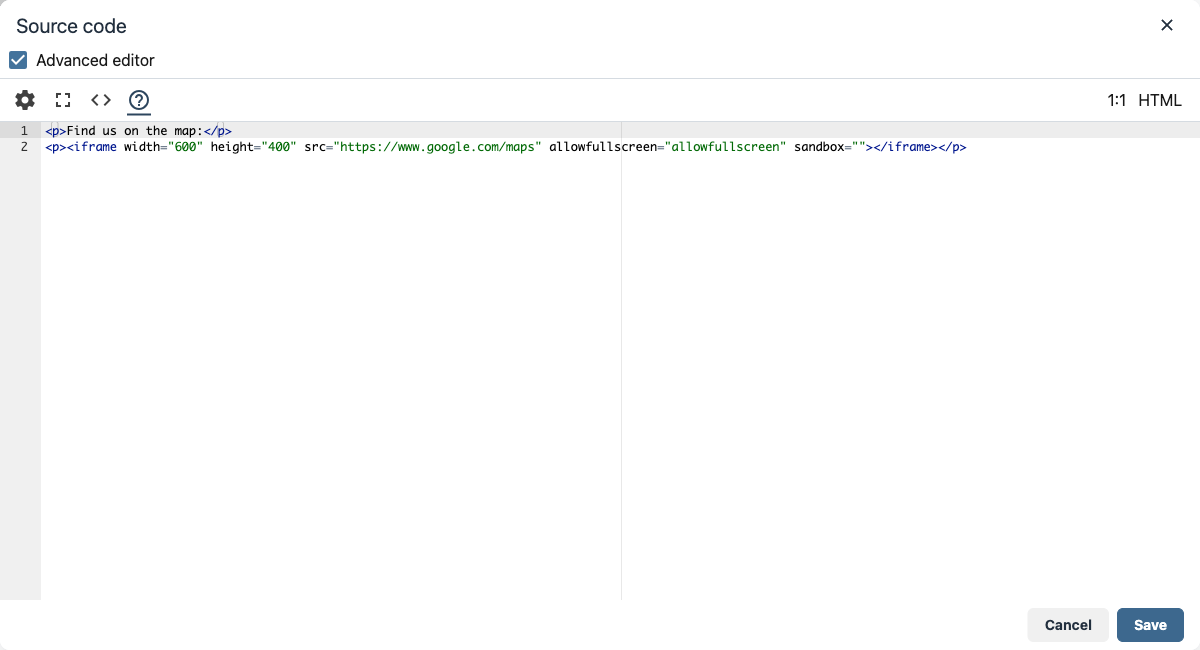
The new editor sanitizes content more strictly than the old one. Unusual markup that the old editor tolerated may be removed when you save. If you maintain a page with hand-tuned markup in the WYSIWYG, check it after your first save in the new editor.
Content that needs to survive untouched is usually better placed in a Format or a Block than pasted into the WYSIWYG.
All content is now wrapped in block elements such as <p>. Text that the old editor left unwrapped will be wrapped the first time you edit and save the page. This is a markup change only, though it can slightly change spacing if your stylesheet targets bare text nodes.
Common questions
Contact support and ask to have it enabled. It can be turned on for a whole instance or for a specific set of users, which is the better option if you want a small group to evaluate it before a wider rollout.
Yes, at any time. Contact support and the change takes effect for the users you specify. Nothing about your content changes in either direction.
No. The new editor reads and writes the same HTML as the old one, and switching does not modify stored content. Content changes only when someone edits and saves a page, at which point the cleanup rules described above apply.
Not yet. It is currently available in Cloud environments only.