Workflows
A workflow is a series of steps content must pass through before someone can create, edit, copy, move, rename, or delete it.
Overview
A Workflow Definition is a group of steps connected by actions. A single step can offer several actions, each leading to a different step. Actions can carry triggers, which run functions inside Cascade CMS when the action is selected.
When a workflow reaches a step with no further action, it's complete. The asset is no longer considered "in workflow" and returns to its normal state.
Creating a Workflow Definition
Open the Workflow Definitions area
Navigate to Manage Site > Workflow Definitions, then move to the container where the new definition should live. To create a container, use Add > Container.
Add the definition and set its properties
Click Add > Workflow Definition, then fill in the Properties tab:
- Name — Include the workflow type in the name (Create/Edit, Delete, Move/Rename) so it's easy to pick the right one when assigning workflow later.
- Parent Container — Where the definition is stored.
- Workflow Type — The action that starts the workflow. An Edit workflow starts when someone edits an asset.
- Default Workflow Name — The name given to each new workflow created from this definition. The auto-name option produces "WorkflowDefinitionName: AssetName".
- Groups — Only the groups listed here can use this definition, so you can offer different workflows to different teams.
- Custom Workflow Emails — Attach Notification and Completion email templates to override the default messages sent by an Email trigger.
Build the workflow
Choose either interface — they edit the same definition:
- XML — An XML editor, with optional file upload.
- Workflow Builder — A visual editor for adding ordered and unordered steps, actions, and triggers. It starts from a stock five-step approval workflow you can customize.
Submit
Click Submit to save the Workflow Definition.
Start from an example
Hannon Hill publishes several example Workflow Definitions you can copy and adapt. Paste one into the XML tab, then switch to Workflow Builder to customize it — changes made in either tab appear in the other.
Previewing a Workflow Definition
The preview is a flow diagram of your steps, with their resulting actions and triggers.
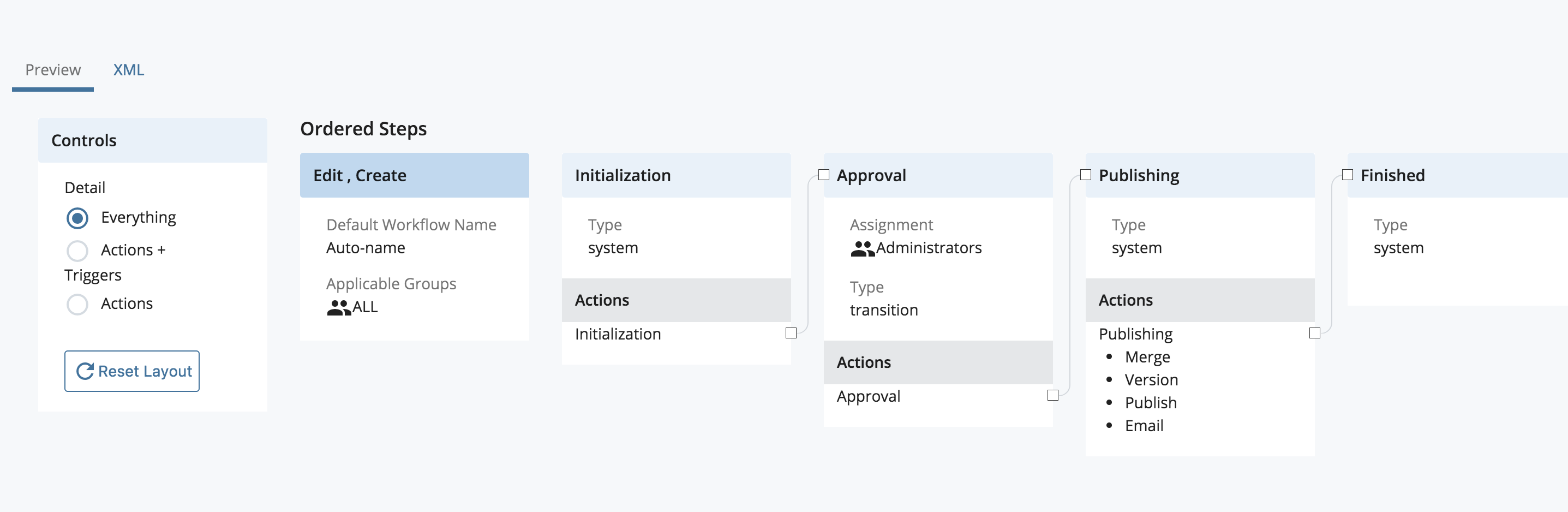
You can adjust the diagram while you read it:
- Use the Detail panel on the left to control how much is shown — Everything (step type, default assignments, actions, and triggers), Actions + Triggers, or Actions alone.
- Click and drag steps into a clearer arrangement.
- Click any connecting line to highlight the path between an action and the step it leads to.
Click Reset Layout to return the diagram to its default arrangement.
Workflow steps
A step is a single moment in a workflow where one or more actions are available. Some steps have step owners — the users or groups responsible for choosing an action and moving the workflow forward.
Ordered and unordered steps
- Ordered steps run in the order they're defined, though an action can move the workflow forward or back. In the definition XML they're connected by actions carrying a
moveattribute set toforwardorreverse. - Unordered steps are reached only when an action explicitly names them, using the action's
next-idattribute.
Step types
- System step — Runs without user intervention. It has a single action (of type
auto) but can fire several triggers, such as Version, Merge, and Publish. The first and last steps of a workflow should both be system steps, and a workflow made entirely of system steps runs automatically. - Transition step — Offers one or more actions representing a user's choices. It has a default user or group assignment, which triggers can override to assign ownership dynamically.
- Edit step — The only place the working copy of an asset in workflow can be edited. Edit steps are usually unordered — for example, sending a workflow back to its initiator for changes — and carry a single action that determines the next step.
Step attributes
- Step Identifier — The step's unique identifier, used by an action's
next-idattribute to transition to it. - Step Label — The step name users see.
- Step Type —
system,transition, oredit. - Escalate To / Escalate After — A step to advance to automatically once a given time has passed.
- Default Assignment — The user or group the step is assigned to, overridable by triggers.
- Allow Reassignment — Lets the step be reassigned to a specified user, or to users within a group or role.
- Actions — The pathways out of this step. Transition steps may have several.
Workflow actions
Actions link steps together, creating pathways from the first step to the last. System and edit steps have exactly one action each. Transition steps need a decision, so they usually offer several — approve, reject, or send back for edits.
Each action is defined by:
- Action Identifier — The action's unique identifier within its step.
- Action Label — The action name users see.
- Transition — The step this action leads to.
- Available Triggers — The triggers that run when this action is selected. Each trigger can take parameters that refine what it does.
Workflow triggers
Triggers perform a specific task when their action is reached or selected. Some are asset-related, such as versioning or publishing the asset in workflow. Others handle everything else — assigning the next step, or sending an email notification.
Parameters customize what a trigger does: naming a Destination for a Publish trigger, or an external address for an Email trigger.