Broken Links Report
The Broken Links Report shows the results of the scheduled Link Checker. Only pages and files marked as publishable are scanned.
Enabling the report
Enabling the report takes two passes: once for the system, then once per site.
Enable it for your system
Open the report preferences
Go to Administration > Preferences > Reports.
Schedule the Link Checker
Under Link Checker Configuration, set Run Scheduled Link Checker to the day of the week and time the check should run.
Submit
Click Submit to save the preference.
Schedule it for off-peak hours
Link checking is demanding. Run it no more than once a week, during a quiet window such as early morning at the weekend, so it doesn't slow the system down for everyone else.
Enable it for each site
Open Site Settings
Choose the site from the Site menu, then go to Manage Site > Site Settings.
Turn on link checking
Under Link Checking, enable Schedule Link Checking, then click Submit.
Repeat for every site you want covered
Each site's report appears under Reports after the next scheduled run.
Viewing the report
Once the report has run for at least one site, open Reports > Broken Links Report and pick a report-enabled site under Filter Results.
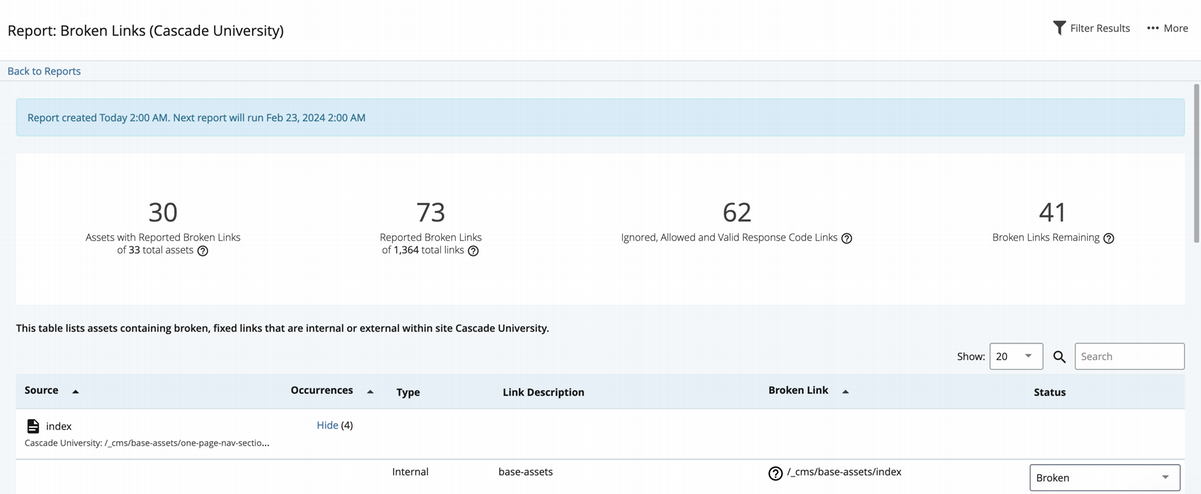
The summary at the top counts:
- Assets with reported broken links.
- Reported broken links.
- Broken links currently ignored, allowed, or returning valid response codes.
- Broken links remaining — those not marked fixed or ignored since the last scheduled run.
Below the summary is every broken link found during checking. Group the results by link to see all assets using a particular broken link, or by asset to see all broken links within each asset.
Reading the results
- Source — The asset the broken link was rendered in.
- Occurrences — Grouped by link, the number of assets using that link; grouped by asset, the number of broken links in that asset. Click Show to expand the underlying rows and Hide to collapse them.
- Type — Internal links point at resources inside Cascade CMS, such as files and pages. External links point outside it.
- Link Description — For hyperlinks, the text inside the element, or "Link with no text". For everything else, a description of the tag holding the link, such as "Broken image source", to help you find it on the page.
- Broken Link — The value of the attribute considered broken. For an
<a>tag that's thehref. Hover over or click the question mark icon beside it to see why it was flagged. - Status — Whether the link has been dealt with. See below.
Marking a link fixed or ignored
Use the Status dropdown to mark a link Fixed once you've corrected it, or Ignored to exclude it from the Link Checker. Either choice reduces the Broken Links Remaining count, and a link marked Fixed shows as Fixed for everyone.
The first row of each group also offers Mark all fixed and Mark all broken, which apply to every row in that group.
Marking a link fixed doesn't fix it
If the link hasn't actually been corrected in the asset, its status reverts to Broken the next time the Link Checker runs.
Abilities required
Reading a site's report needs the Access site-wide broken link report ability in your Site Role. Marking links fixed also needs Mark broken links as fixed on the site-wide broken link report.
Filtering the report
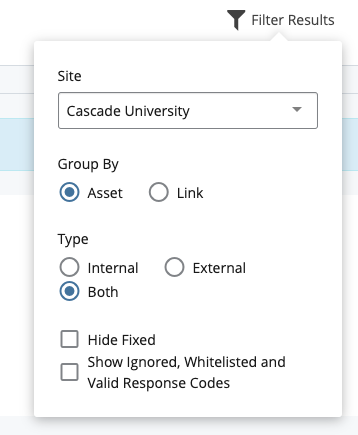
- Site — Required. No data appears until you choose one.
- Group By — Asset lists every broken link per asset; Link lists every asset using a given broken link.
- Type — Internal or external links.
- Hide Fixed — Hides links already marked as fixed.
- Show Ignored, Allowed URLs and Valid Response Codes — Includes links that were ignored, matched an allowed URL, or returned a response code configured as valid.
Exporting the report
With your filters set, click Export CSV at the top right of the page to download the current results.
Fixing broken links
Find the link
Locate it in the Broken Link column.
Edit the source asset
Open the asset named in the Source column.
Correct it
Either search the asset's content for the link and fix it directly, or run Check Content & Submit and fix it during the broken link content check.
Can't find the link in the source asset?
The link may live in a supporting asset — a Template, Format, or Block. Those aren't publishable, so they're never scanned directly, and the report attributes their links to the page that rendered them. If neither a manual search nor the on-submit check turns the link up, look in the supporting assets behind the page.
Elements checked for broken links
| Element | Attributes |
|---|---|
a | href |
area | href, src, background |
audio | src |
body | src, background |
embed | href, src |
frame | src |
iframe | src |
img | src |
input | href, src, background |
link | href, src |
param | href, src, background |
script | src |
source | src |
table | background |
td | background |
video | src, poster |